> ## Documentation Index
> Fetch the complete documentation index at: https://wb-21fd5541-feature-automate-reference-docs-generation.mintlify.site/llms.txt
> Use this file to discover all available pages before exploring further.
# Datasets
> Organize, collect, track, and version examples for LLM application evaluation
Weave `Dataset`s help you to organize, collect, track, and version examples for LLM application evaluation for easy comparison. You can create and interact with `Dataset`s programmatically and via the UI.
This page describes:
* Basic `Dataset` operations in Python and TypeScript and how to get started
* How to create a `Dataset` in Python and TypeScript from objects such as Weave [calls](../tracking/tracing.mdx)
* Available operations on a `Dataset` in the UI
## `Dataset` quickstart
The following code samples demonstrate how to perform fundamental `Dataset` operations using Python and TypeScript. Using the SDKs, you can:
* Create a `Dataset`
* Publish the `Dataset`
* Retrieve the `Dataset`
* Access a specific example in the `Dataset`
Select a tab to see Python and TypeScript-specific code.
```python
import weave
from weave import Dataset
# Initialize Weave
weave.init('intro-example')
# Create a dataset
dataset = Dataset(
name='grammar',
rows=[
{'id': '0', 'sentence': "He no likes ice cream.", 'correction': "He doesn't like ice cream."},
{'id': '1', 'sentence': "She goed to the store.", 'correction': "She went to the store."},
{'id': '2', 'sentence': "They plays video games all day.", 'correction': "They play video games all day."}
]
)
# Publish the dataset
weave.publish(dataset)
# Retrieve the dataset
dataset_ref = weave.ref('grammar').get()
# Access a specific example
example_label = dataset_ref.rows[2]['sentence']
```
```typescript
import * as weave from 'weave';
// Initialize Weave
await weave.init('intro-example');
// Create a dataset
const dataset = new weave.Dataset({
name: 'grammar',
rows: [
{id: '0', sentence: "He no likes ice cream.", correction: "He doesn't like ice cream."},
{id: '1', sentence: "She goed to the store.", correction: "She went to the store."},
{id: '2', sentence: "They plays video games all day.", correction: "They play video games all day."}
]
});
// Publish the dataset
await dataset.save();
// Access a specific example
const exampleLabel = datasetRef.getRow(2).sentence;
```
## Create a `Dataset` from other objects
In Python, `Dataset`s can also be constructed from common Weave objects like [calls](../tracking/tracing.mdx), and Python objects like `pandas.DataFrame`s. This feature is useful if you want to create an example `Dataset` from specific examples.
### Weave call
To create a `Dataset` from one or more Weave calls, retrieve the call object(s), and add them to a list in the `from_calls` method.
```python
@weave.op
def model(task: str) -> str:
return f"Now working on {task}"
res1, call1 = model.call(task="fetch")
res2, call2 = model.call(task="parse")
dataset = Dataset.from_calls([call1, call2])
# Now you can use the dataset to evaluate the model, etc.
```
### Pandas DataFrame
To create a `Dataset` from a Pandas `DataFrame` object, use the `from_pandas` method.
To convert the `Dataset` back, use `to_pandas`.
```python
import pandas as pd
df = pd.DataFrame([
{'id': '0', 'sentence': "He no likes ice cream.", 'correction': "He doesn't like ice cream."},
{'id': '1', 'sentence': "She goed to the store.", 'correction': "She went to the store."},
{'id': '2', 'sentence': "They plays video games all day.", 'correction': "They play video games all day."}
])
dataset = Dataset.from_pandas(df)
df2 = dataset.to_pandas()
assert df.equals(df2)
```
### Hugging Face Datasets
To create a `Dataset` from a Hugging Face `datasets.Dataset` or `datasets.DatasetDict` object, first ensure you have the necessary dependencies installed:
```bash
pip install weave[huggingface]
```
Then, use the `from_hf` method. If you provide a `DatasetDict` with multiple splits (like 'train', 'test', 'validation'), Weave will automatically use the 'train' split and issue a warning. If the 'train' split is not present, it will raise an error. You can provide a specific split directly (e.g., `hf_dataset_dict['test']`).
To convert a `weave.Dataset` back to a Hugging Face `Dataset`, use the `to_hf` method.
```python
# Ensure datasets is installed: pip install datasets
from datasets import Dataset as HFDataset, DatasetDict
# Example with HF Dataset
hf_rows = [
{'id': '0', 'sentence': "He no likes ice cream.", 'correction': "He doesn't like ice cream."},
{'id': '1', 'sentence': "She goed to the store.", 'correction': "She went to the store."},
]
hf_ds = HFDataset.from_list(hf_rows)
weave_ds_from_hf = Dataset.from_hf(hf_ds)
# Convert back to HF Dataset
converted_hf_ds = weave_ds_from_hf.to_hf()
# Example with HF DatasetDict (uses 'train' split by default)
hf_dict = DatasetDict({
'train': HFDataset.from_list(hf_rows),
'test': HFDataset.from_list([{'id': '2', 'sentence': "Test sentence", 'correction': "Test correction"}])
})
# This will issue a warning and use the 'train' split
weave_ds_from_dict = Dataset.from_hf(hf_dict)
# Providing a specific split
weave_ds_from_test_split = Dataset.from_hf(hf_dict['test'])
```
This feature is not currently available in TypeScript. Stay tuned!
## Create, edit, and delete a `Dataset` in the UI
You can create, edit, and delete `Dataset`s in the UI.
### Create a new `Dataset`
1. Navigate to the Weave project you want to edit.
2. In the sidebar, select **Traces**.
3. Select one or more calls that you want to create a new `Dataset` for.
4. In the upper right-hand menu, click the **Add selected rows to a dataset** icon (located next to the trashcan icon).
5. From the **Choose a dataset** dropdown, select **Create new**. The **Dataset name** field appears.
6. In the **Dataset name** field, enter a name for your dataset. Options to **Configure dataset fields** appear.
:::important
Dataset names must start with a letter or number and can only contain letters, numbers, hyphens, and underscores.
:::
7. (Optional) In **Configure dataset fields**, select the fields from your calls to include in the dataset.
* You can customize the column names for each selected field.
* You can select a subset of fields to include in the new `Dataset`, or deselect all fields.
8. Once you've configured the dataset fields, click **Next**. A preview of your new `Dataset` appears.
9. (Optional) Click any of the editable fields in your **Dataset** to edit the entry.
10. Click **Create dataset**. Your new dataset is created.
11. In the confirmation popup, click **View the dataset** to view the new `Dataset`. Alternatively, go to the **Datasets** tab.
### Edit a `Dataset`
1. Navigate to the Weave project containing the `Dataset` you want to edit.
2. From the sidebar, select **Datasets**. Your available `Dataset`s display.
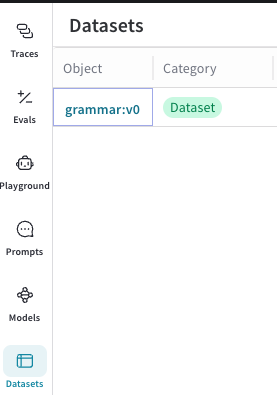
3. In the **Object** column, click the name and version of the `Dataset` you want to edit. A pop-out modal showing `Dataset` information like name, version, author, and `Dataset` rows displays.
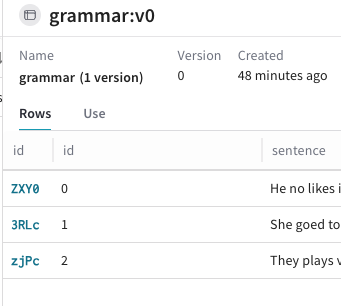
4. In the upper right-hand corner of the modal, click the **Edit dataset** button (the pencil icon). An **+ Add row** button displays at the bottom of the modal.

5. Click **+ Add row**. A green row displays at the top of your existing `Dataset` rows, indicating that you can add a new row to the `Dataset`.
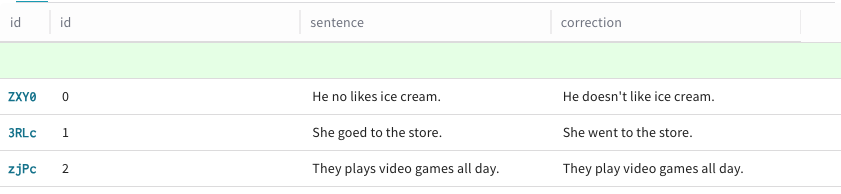
6. To add data to a new row, click the desired column within that row. The default **id** column in a `Dataset` row cannot be edited, as Weave assigns it automatically upon creation. An editing modal appears with **Text**, **Code**, and **Diff** options for formatting.
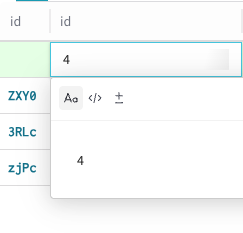
7. Repeat step 6 for each column that you want to add data to in the new row.
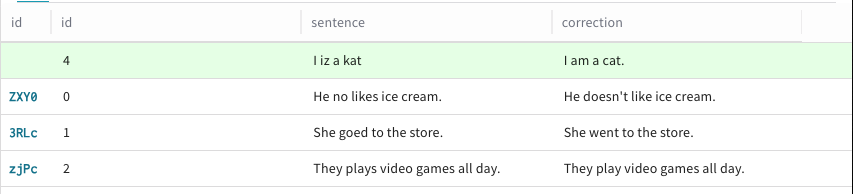
8. Repeat step 5 for each row that you want to add to the `Dataset`.
9. Once you're done editing, publish your `Dataset` by clicking **Publish** in the upper right-hand corner of the modal. Alternatively, if you don't want to publish your changes, click **Cancel**.
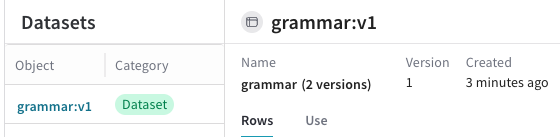
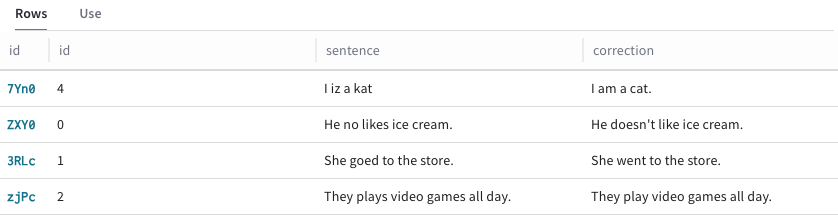
Once published, the new version of the `Dataset` with updated rows is available in the UI.
### Delete a `Dataset`
1. Navigate to the Weave project containing the `Dataset` you want to edit.
2. From the sidebar, select **Datasets**. Your available `Dataset`s display.
3. In the **Object** column, click the name and version of the `Dataset` you want to delete. A pop-out modal showing `Dataset` information like name, version, author, and `Dataset` rows displays.
4. In the upper right-hand corner of the modal, click the trashcan icon.
A pop-up modal prompting you to confirm `Dataset` deletion displays.
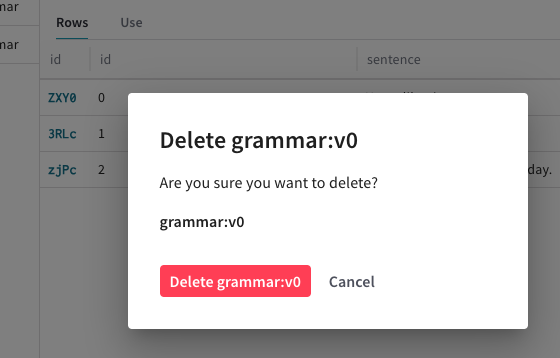
5. In the pop-up modal, click the red **Delete** button to delete the `Dataset`. Alternatively, click **Cancel** if you don't want to delete the `Dataset`.
Now, the `Dataset` is deleted, and no longer visible in the **Datasets** tab in your Weave dashboard.
### Add a new example to a `Dataset`
1. Navigate to the Weave project you want to edit.
2. In the sidebar, select **Traces**.
3. Select one or more calls with `Datasets` for which you want to create new examples.
4. In the upper right-hand menu, click the **Add selected rows to a dataset** icon (located next to the trashcan icon). Optionally, toggle **Show latest versions** to off to display all versions of all available datasets.
5. From the **Choose a dataset** dropdown, select the `Dataset` you want to add examples to. Options to **Configure field mapping** will display.
6. (Optional) In **Configure field mapping**, you can adjust the mapping of fields from your calls to the corresponding dataset columns.
7. Once you've configured field mappings, click **Next**. A preview of your new `Dataset` appears.
8. In the empty row (green), add your new example value(s). Note that the **id** field is not editable and is created automatically by Weave.
9. Click **Add to dataset**. Alternatively, to return to the **Configure field mapping** screen, click **Back**.
10. In the confirmation popup, click **View the dataset** to see the changes. Alternatively, navigate to the **Datasets** tab to view the updates to your `Dataset`.
## Other Dataset Operations
### Selecting Rows
You can select specific rows from a `Dataset` by their index using the `select` method. This is useful for creating subsets of your data.
```python
import weave
from weave import Dataset
# Create a sample dataset
dataset = Dataset(rows=[
{'col_a': 1, 'col_b': 'x'},
{'col_a': 2, 'col_b': 'y'},
{'col_a': 3, 'col_b': 'z'},
{'col_a': 4, 'col_b': 'w'},
])
# Select rows at index 0 and 2
subset_dataset = dataset.select([0, 2])
# Now subset_dataset contains only the first and third rows
# print(list(subset_dataset))
# Output: [{'col_a': 1, 'col_b': 'x'}, {'col_a': 3, 'col_b': 'z'}]
```
This feature is not currently available in TypeScript. Stay tuned!